How to Check If a Photo Is Real or AI on Your iPhone (2026)
Want to verify a photo right on your iPhone without uploading it anywhere? Here's how to check if an image is real or AI-generated, privately and on-device.
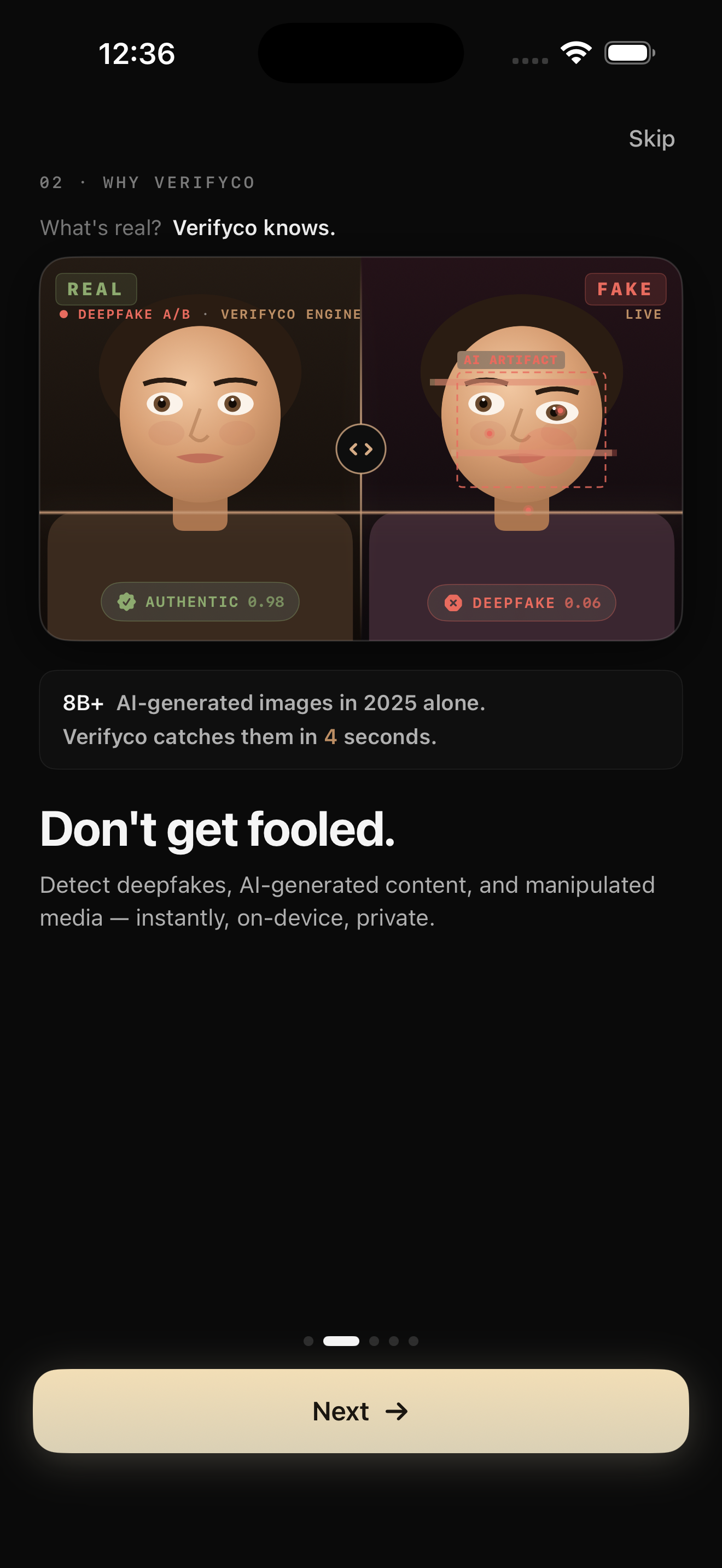
You’re scrolling through Instagram or a group chat and a photo stops you. Something feels off — or maybe it looks perfect in a way that’s too perfect. You want to know: is this real, or did AI make it? And ideally, you’d like to find out right now, on your phone, without emailing it to some website or handing your personal photo to a company you’ve never heard of.
Good news: in 2026 you can do exactly that. This guide covers the practical ways to check a photo directly on your iPhone — what each method can and can’t do, and how to keep the process private. (New to the topic? Start with what is a deepfake.)
The privacy problem most people miss
Here’s something worth pausing on. Most “AI image detector” websites work by having you upload your image to their server, where it’s analyzed remotely. For a random meme, that’s fine. But for a personal photo — a picture of your family, a sensitive document, a private message — uploading it to an unknown third party is its own risk. You’re trying to verify the image, not give it away.
This is the core reason on-device tools matter. Anything that runs locally on your iPhone keeps the photo on your phone, where it belongs. Keep that distinction in mind as we go through the options.
Option 1: Check for provenance with the Photos app and Gemini
Before any analysis, check whether the image carries a record of its origin.
Look at the metadata. Open the photo in the Photos app, tap the info button (the small “i”), and you can see basic file details. Some images — especially from AI tools that support the standard — carry Content Credentials (C2PA), an embedded record of whether AI was involved in creating or editing them. The limitation: this data is easily stripped. If the image was screenshotted or re-saved (which is almost everything shared on social media), the credentials are usually gone.
Use the Gemini app for Google images. If you suspect an image was made with a Google AI model, the Gemini app on iPhone can check for Google’s invisible SynthID watermark. Upload the image and ask whether it was AI-generated. The big caveat: SynthID only detects Google-origin content. A “no watermark” result tells you nothing about images from Midjourney, Stable Diffusion, or other tools.
Provenance is the fastest path to an answer when it exists — but most real-world images you’ll want to check have had their provenance stripped. That’s where you need actual analysis.
Option 2: Inspect the image yourself
You can do a surprising amount with just your eyes and the zoom gesture, though this is getting harder every year. Pinch to zoom in and look for:
- Inconsistent shadows — do they all fall from the same light source?
- Reflections in eyes, glasses, and windows that don’t match the scene
- Bent or merging straight lines in backgrounds (railings, tiles, window frames)
- Strange textures in fine details like hair, fabric, or text on signs
This is a useful first pass, but be honest with yourself about its limits. Modern AI in 2026 routinely produces images that pass all of these checks. Passing them isn’t proof an image is real — it just means you didn’t find an obvious flaw. (For the full visual method, see how to tell if an image is AI-generated.)
Option 3: Use a dedicated on-device detection app
For anything beyond a quick eyeball check, you want a tool that analyzes the statistical fingerprints AI leaves behind — the patterns invisible to the human eye. The key is choosing one that does this on your device rather than uploading your photo.
This is precisely what we designed Verifyco for. Here’s how it works on iPhone:
It runs entirely on-device. Verifyco uses Apple’s Neural Engine and an on-device model to analyze your photo without uploading anything. No cloud, no account, no data collection. Whatever you check stays on your iPhone. (More on why that matters: on-device verification, explained.)
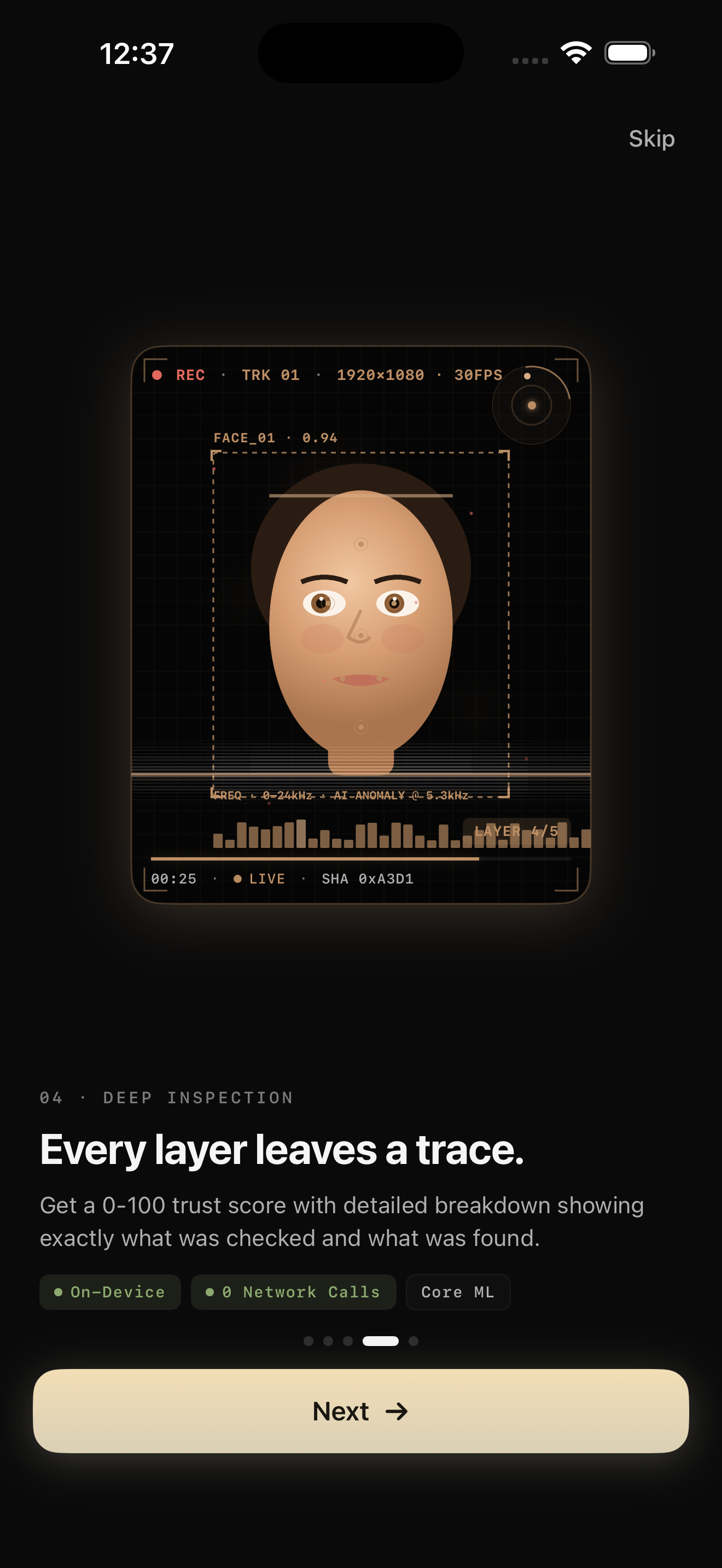
It checks multiple layers, not just one. Instead of a single yes/no, it examines provenance and metadata, AI-generation signatures, frequency patterns the eye can’t see, and — for videos — frame-to-frame consistency. It combines these into a trust score from 0 to 100 with a breakdown so you can see what each layer found.
It’s honest about uncertainty. A lot of social-media imagery is so compressed and stripped of data that no tool can be certain. Rather than guess, Verifyco will tell you when the result is inconclusive — which is the truthful answer in those cases, and far more useful than false confidence.
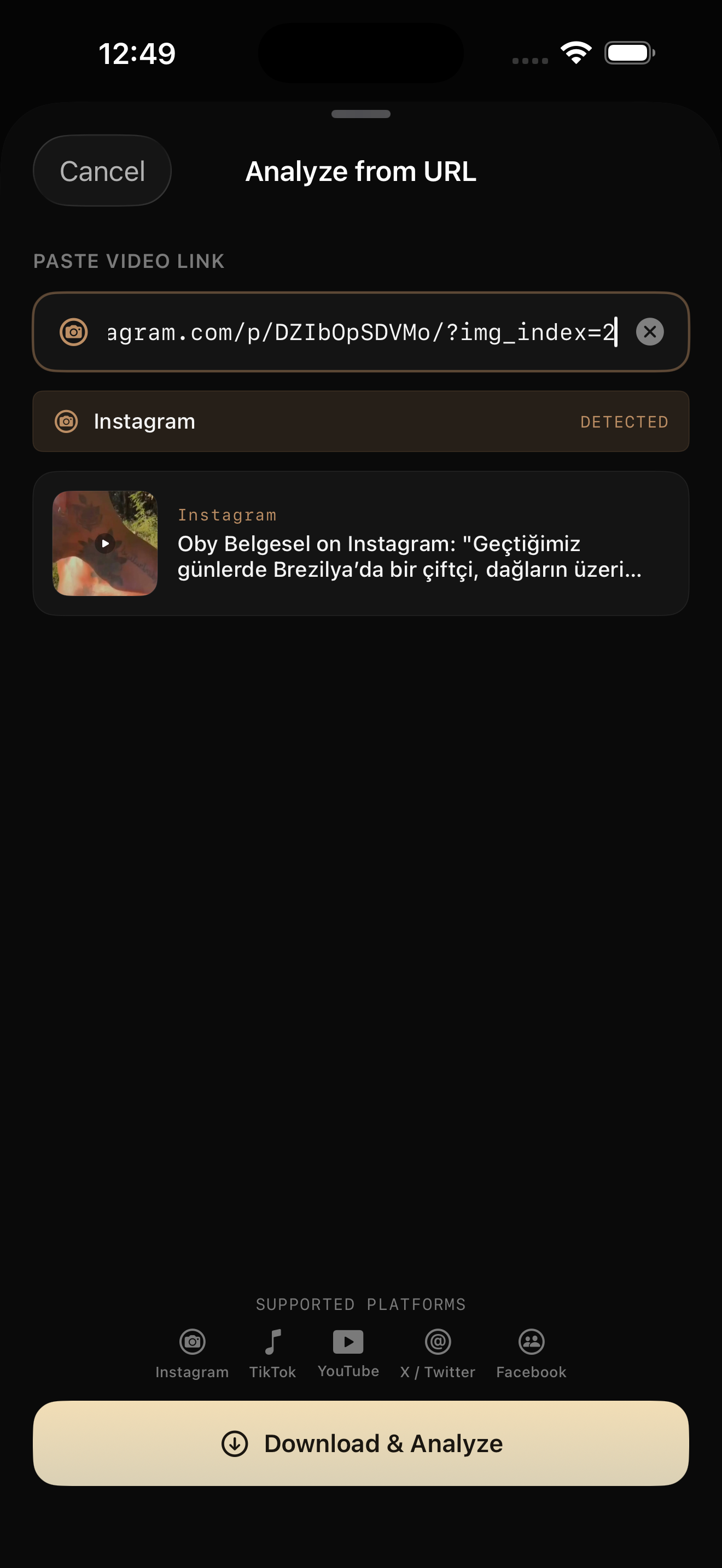
You can check media from anywhere. Thanks to the iOS Share Extension, you can analyze a photo or video directly from Photos, Safari, or a social app without opening Verifyco first — just tap Share and send it to Verifyco. You can also paste a social media link (Instagram, TikTok, and others) to check a clip.
How to check a photo with Verifyco, step by step
- Download Verifyco from the App Store (it’s free to try, no account needed).
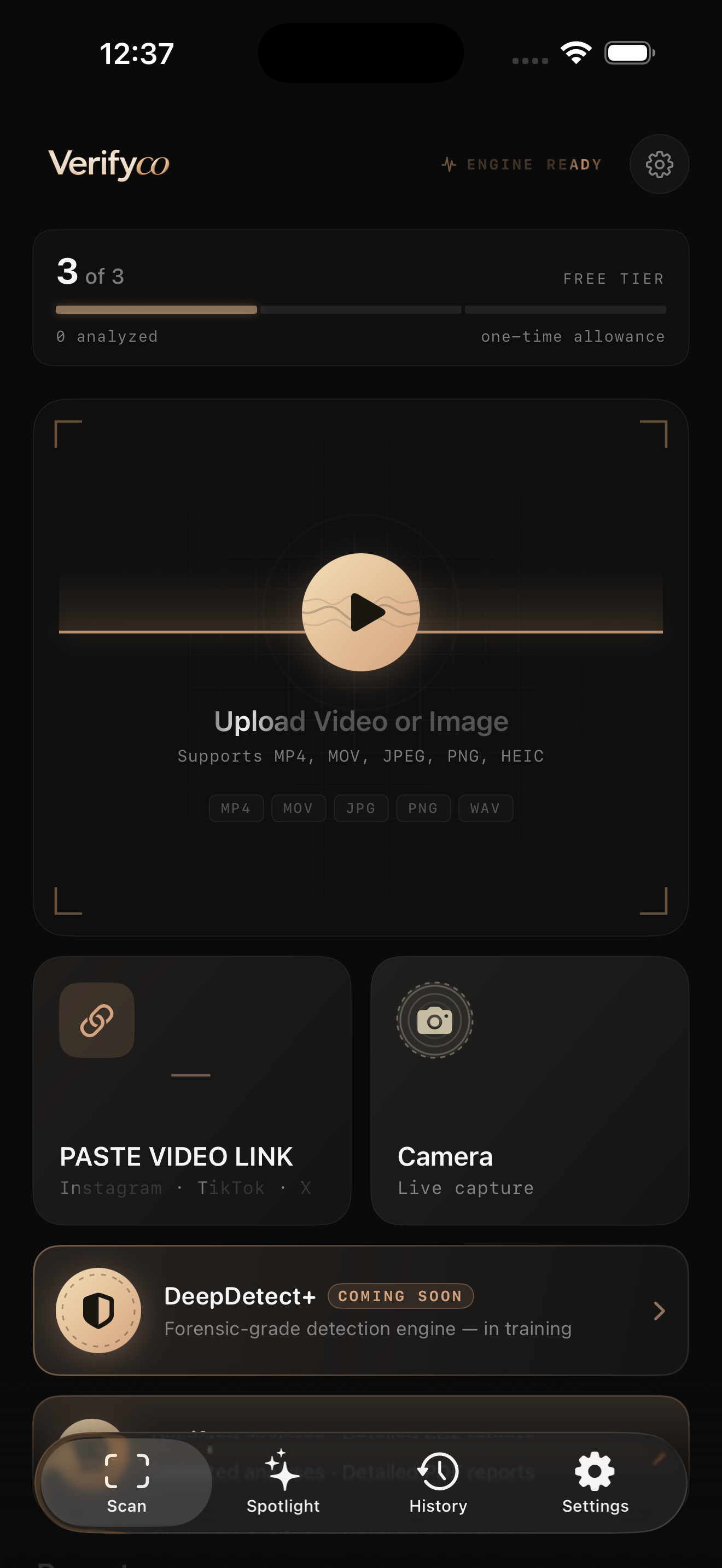
- Add the photo — tap to select an image from your library or camera, or paste a link. You can also use the Share Extension from any app.
- Let it analyze. The forensic check runs automatically on your device and takes a few seconds.
- Read the result. You’ll get a trust score plus a layer-by-layer breakdown. A high score means the signals look consistent with a real capture; a low score means signs of AI or manipulation showed up; a middle/“inconclusive” result means the evidence isn’t strong enough to call either way.
How to read the result like a pro
Whatever tool you use, interpret the output the right way:
- A score is evidence, not a verdict. Even the best detectors run around 85–94% accuracy on clean images in 2026, and lower on compressed ones. Use the result as a strong clue, then apply judgment.
- Inconclusive is a real answer. Heavily compressed, screenshotted, or re-saved images often can’t be judged confidently by anyone. A tool that admits this is being honest with you.
- Combine signals when it matters. For something important, check provenance and run a detector and look at the physics. Where they agree, you have a strong conclusion.
The bottom line
You don’t need a computer or any technical skill to check a photo in 2026 — your iPhone is enough. Start with provenance (Photos info, Gemini for Google images), do a quick visual pass, and for real analysis use an on-device detector that keeps your photo private. The habit that protects you is simple: check before you trust.
Frequently asked questions
Can I tell if a photo is AI-generated directly on my iPhone? Yes. You can check provenance in the Photos app and the Gemini app, inspect the image visually, and use an on-device detection app like Verifyco for a forensic analysis that never uploads your photo.
Do AI detector apps upload my photos? Many web-based detectors do — they analyze your image on their servers. On-device apps like Verifyco analyze the photo locally on your iPhone, so it never leaves your device. If privacy matters, check whether a tool is on-device before using it.
Is there a free way to check AI photos on iPhone? Yes. The Gemini app checks Google’s watermark for free, and Verifyco is free to try with on-device analysis and no account required.
Why does a detector say “inconclusive”? Because the image has likely been compressed or stripped of data (common with anything shared on social media), which weakens the signals detectors rely on. An honest tool reports this rather than guessing — and that’s genuinely the correct answer in those cases.